

How to Make CitrusOrangeFlangedSawChorded
Created on 2 April 2026
For this effect, you will need FL Studio for the vocoded audio to be installed, and the latest version of Kdenlive for the visual effect running on your operating system.
Step 1: Launching the Digital Audio Workstation (DAW)
Open FL Studio, browse to your files, and see if you can import an audio file into the empty track lane. Or open the channel rack, click the plus icon, and choose an audio clip under the miscellaneous category. Next, click the new audio clip channel that appears, then click the small folder icon in the channel settings window to browse your computer and select your desired audio clip. You can also drag the audio clip from the channel rack into your playlist workspace if necessary. Usually, I would turn off the Fruity Limiter plugin in the last slot inside the mixer tool if I were you.
Step 2: Apply the Plugin
On the Mixer tool, click on a small arrow in one of the slots, and find "IL Vocodex" under the miscellaneous section to apply it to the track or browse through the plugin database and on the effects folder, click the miscellaneous folder and choose the plugin I mentioned to apply.
Inside the plugin, change the preset to "Chord", and change the carrier tone to "Flanged Saw". Follow the keyset below to change certain keys.
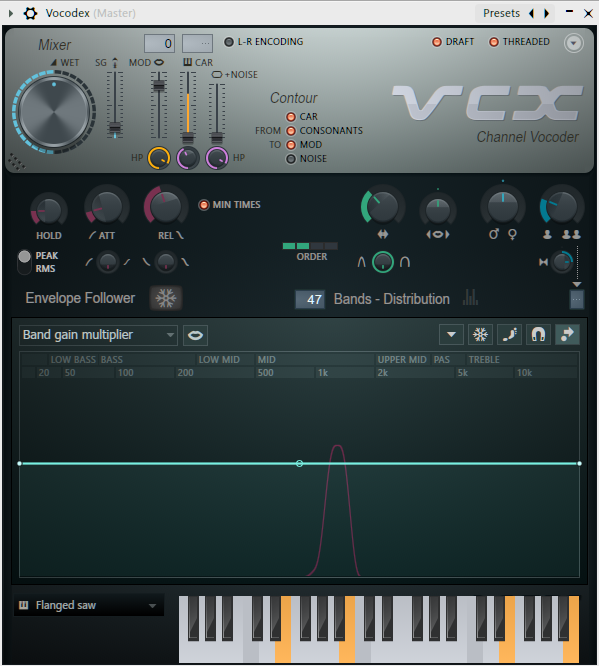
The customised keyset for CitrusOrangeFlangedSawChorded
When you are already done following step-by-step, export your audio file in any format to your files elsewhere, such as .mp3, .ogg, or .wav.
Step 3: Opening the Video Editor
Launch Kdenlive on your screen, and browser through the files by going to its built-in file manager, and choosing a video file or you can simply just drag and drop your video clip into the timeline where the tracks are empty.
Step 4: Applying the LUT
Download the provided LUT below, and apply the LUT filter inside the video editor, and then choose "CitrusOrangeFlangedSawChorded" where it came from the .CUBE file.
Step 5: Preview, Render, and Upload
Once you've completed all of the steps to achieve this effect, preview your video and render it right away into your files anywhere. After you're finished, you can upload it to YouTube, Dailymotion, Vimeo, Odysee, Rumble, VidLii, or any other video hosting website there.